
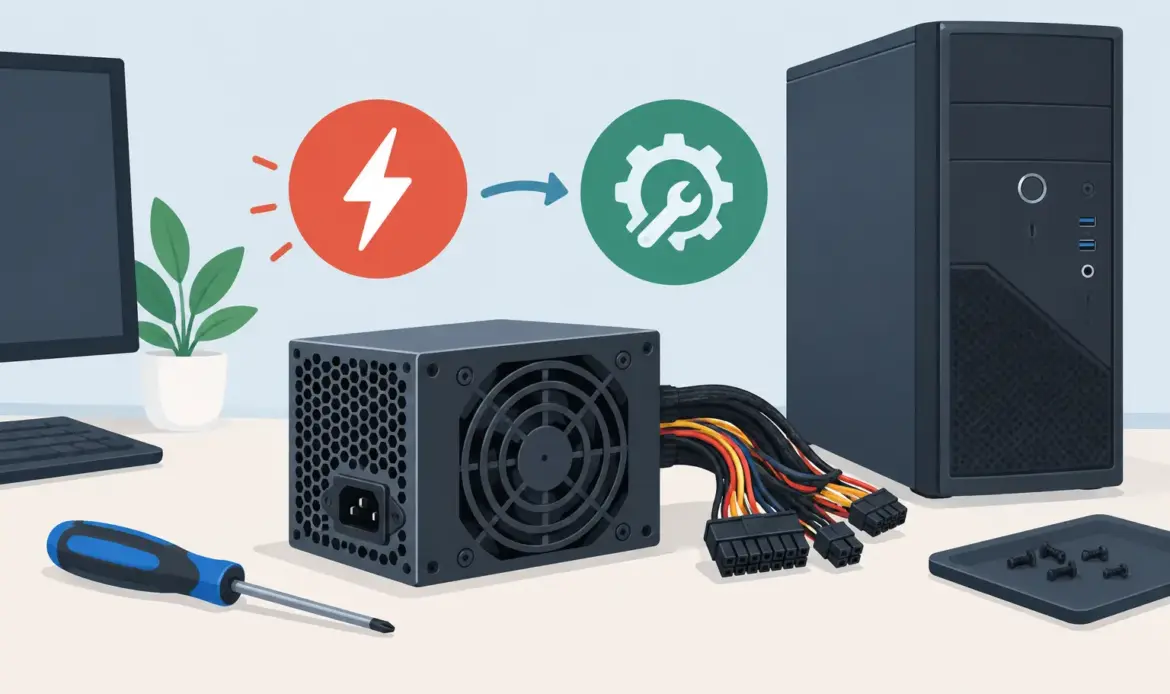
Your desktop was running normally yesterday. This morning, it will not turn on, shuts off halfway through startup, or makes a click and goes silent. Before you assume the whole computer is finished, the desktop power supply deserves attention. This small but critical component delivers electricity to every major part of your PC, and when it starts failing, the symptoms can look like a dead motherboard, bad memory, or a damaged hard drive.
A power issue does not always mean you need a new computer. The right diagnosis can separate a simple cable or outlet problem from a failing internal component – and protect your files, hardware, and budget along the way.
What a Desktop Power Supply Actually Does
The power supply unit, often called the PSU, converts the electricity from your wall outlet into the lower-voltage power your computer needs. It feeds the motherboard, processor, graphics card, storage drives, cooling fans, and USB ports. If it cannot provide stable power, those components cannot do their jobs reliably.
That is why power supply failures can be so confusing. A weak unit may let the computer start but cause sudden restarts under load. A failed unit may leave the system completely unresponsive. In other cases, it sends inconsistent power that creates crashes, screen flickering, drive errors, or a PC that only turns on after several tries.
The PSU is not usually the flashiest part of a desktop computer, but it is one of the most important pieces of its electrical foundation. Treating a suspected issue early can prevent a frustrating failure from turning into a larger repair.
Desktop Power Supply Warning Signs
A single symptom does not prove the power supply is bad. A loose power cord, failing surge protector, worn outlet, motherboard issue, or overheating can create similar behavior. Still, these warning signs are worth taking seriously, especially when more than one is happening:
- The computer will not power on, even though the monitor and outlet work.
- The system starts for a second, then immediately turns back off.
- It randomly restarts or powers down during games, video editing, or demanding work.
- Fans spin but there is no display, no startup sound, or no response from connected devices.
- You smell burning plastic, see smoke, hear popping, or notice unusual electrical buzzing.
- The PC freezes, crashes, or loses power after a graphics card, drive, or other upgrade.
A burning smell, smoke, sparks, or popping sound is an emergency signal. Shut the computer down, unplug it from the wall, and do not try to restart it. Continuing to send power through a damaged unit can put other internal components at risk.
Start With the Safe, Simple Checks
Before assuming an internal repair is needed, work through the basics. Plug the desktop directly into a known-working wall outlet rather than a power strip or extension cord. Check that the detachable power cable is firmly seated in both the outlet and the back of the PC. If you have another compatible computer power cable available, testing with that cable can rule out a damaged cord.
Next, look at the rocker switch on the back of the power supply. It should be set to the line position, not the circle position. If your unit has a voltage selector switch, do not change it casually. Most modern US desktop power supplies are designed for 115V or automatically handle the correct input, but an incorrectly set older unit can cause a no-power condition.
You can also disconnect unnecessary external devices, such as printers, USB hubs, and accessories, then try starting the computer again. A damaged peripheral or overloaded USB device can occasionally interfere with startup. This is a quick check, not a cure-all, but it can narrow down the problem.
Do not open the power supply housing. Even when it is unplugged, a PSU can retain hazardous electrical charge in its capacitors. The metal box is not a consumer-serviceable part, and replacing a power supply is far safer than attempting to repair one internally without the correct training and equipment.
Why Gaming PCs and Upgraded Desktops Need Extra Attention
A desktop power supply that was adequate for a basic office computer may not be enough after upgrades. Adding a powerful graphics card, more storage drives, extra cooling fans, or a higher-performance processor increases the system’s power demand. If the PSU cannot keep up, the computer may work during light browsing but fail during games, rendering, or other demanding tasks.
Wattage matters, but it is not the only factor. A quality unit with stable output, appropriate connectors, and sufficient capacity for the system is more valuable than a questionable high-wattage unit with poor internal components. The graphics card is often the biggest power draw, so its manufacturer recommendations should be considered alongside the processor and other hardware.
There is also a balance to strike. Installing an oversized unit will not make a computer faster on its own. Installing an underpowered or low-quality one can create instability and may leave little room for future upgrades. A proper evaluation looks at the full build, not just the wattage number printed on the label.
Power Supply Failure or Another Computer Problem?
Several issues can imitate a failing PSU. A dead motherboard, damaged power button, faulty RAM, overheating processor, failing graphics card, or corrupted operating system may all cause a desktop to refuse startup or shut down unexpectedly. That is why replacing parts based on a guess can get expensive fast.
For example, if fans spin but there is no image on the monitor, the power supply may be working well enough to start the system. The actual issue could be the display cable, monitor input, graphics card, memory, or motherboard. If the PC shuts down only after it gets hot, dust buildup, failed cooling, or dried thermal paste could be the more likely culprit.
Professional diagnosis uses controlled testing rather than guesswork. A technician can evaluate power output, inspect connectors, test components individually, and check whether the system is drawing more power than it should. That approach helps avoid replacing a perfectly good graphics card or motherboard when the real problem is a tired power supply.
When Repair Makes Sense
In most consumer desktops, a failed power supply is replaced rather than repaired at the component level. The decision comes down to the age and condition of the computer, the quality of the replacement unit needed, and whether other hardware has been affected.
If your desktop is otherwise dependable, a new quality PSU can be a cost-effective rescue. It may also be the right time to clean out dust, inspect fans, organize internal cables, and make sure the system has proper airflow. These small steps help reduce heat stress on the new unit and the components it supports.
If the computer has repeated power problems, liquid damage, burnt connectors, or signs that a failure reached the motherboard or storage drive, the diagnosis needs to go deeper. Your files may still be recoverable, but repeated power-on attempts are not always the safest move. Protecting the data should be part of the repair plan, especially for family photos, school work, business files, and game saves.
For Metro Detroit computer owners, Phone-Medics can inspect desktop power issues with the care your device deserves. Certified technicians can help identify whether the problem is the power supply, another internal component, or a related issue that only looks like a PSU failure.
A desktop that suddenly goes dark can feel like a major loss, but it is often a repairable problem. Stop using the PC if you notice electrical warning signs, avoid opening the PSU yourself, and get a precise diagnosis before buying expensive replacement parts. The right rescue can bring your computer back to life and keep it doing the work, school, gaming, and household tasks you rely on.