
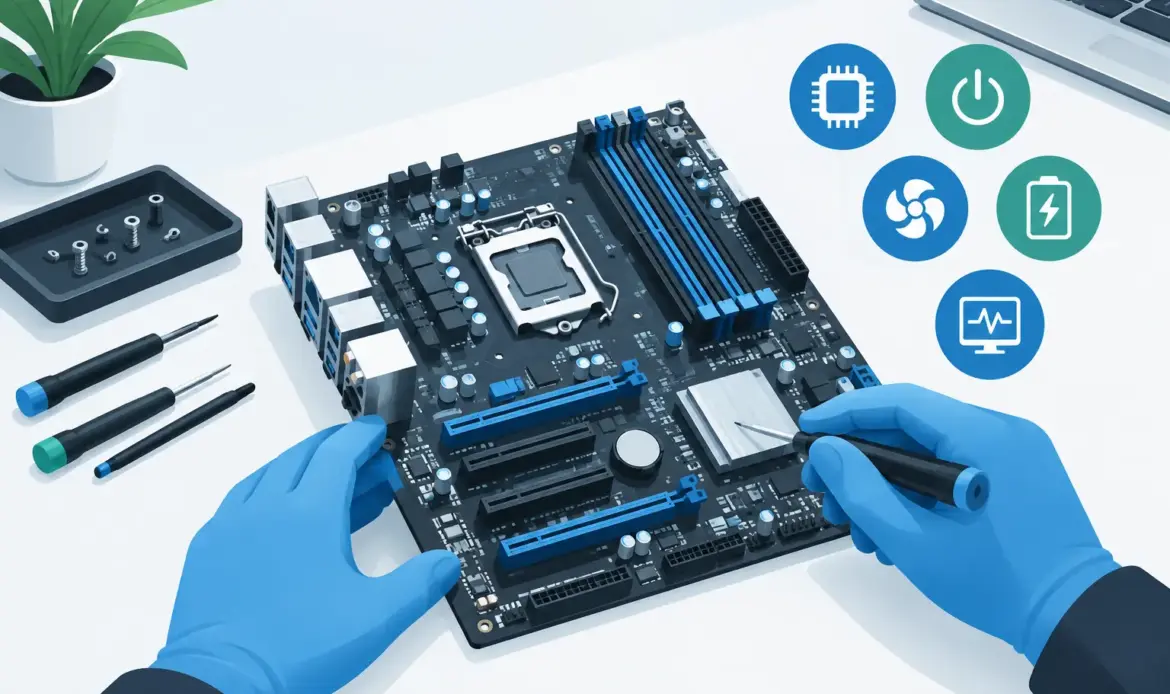
A computer that will not power on, shuts down without warning, or refuses to recognize important hardware can feel like a full-blown emergency. This computer motherboard repair guide helps you separate a motherboard problem from a simpler fix, protect what matters most, and decide when professional repair is the smart rescue.
The motherboard is your computer’s central connection point. It routes power and data between the processor, memory, storage, graphics hardware, ports, and cooling system. When it fails, the symptoms can look dramatic. But a dead-looking PC is not always a dead motherboard. A failing charger, worn battery, damaged power button, loose memory module, or corrupted software can create similar trouble.
Computer Motherboard Repair Guide: Start With Diagnosis
Before anyone reaches for tools, slow down and observe the pattern. Does the computer show any lights? Do fans spin? Does it make beep codes, flash a diagnostic LED, or display a logo before shutting down? A precise symptom report gives a technician a much better starting point than simply saying the computer “won’t work.”
Start with the basics. Test the wall outlet and power cable, then try a known-good charger if you are working on a laptop. Disconnect external devices such as USB hubs, printers, game controllers, and docks. A shorted accessory or damaged port can stop a system from starting normally.
For a desktop, check that the power supply switch is on and that the main power connectors are firmly seated. For a laptop, inspect the charging port for looseness, debris, bent contacts, or heat damage. If the charging port moves inside the case or only works at a certain angle, the issue may be the DC jack or its connection to the board rather than the motherboard itself.
Do not keep cycling power over and over if you smell burning plastic, see smoke, hear clicking from the power supply, or notice excessive heat. Unplug the device. Repeated power attempts can turn a localized component failure into wider board damage.
Symptoms That Often Point to the Motherboard
Motherboard trouble is rarely diagnosed by one symptom alone. It is usually a combination of failures that rules out the more common parts. Watch for a computer that powers on but never reaches the manufacturer logo, even after memory and storage are tested. Other warning signs include USB ports that stop working in groups, onboard audio or networking disappearing, random restarts with no consistent software cause, or a charging circuit that fails despite a good charger and battery.
Liquid exposure is another major clue. Even if a laptop worked after a spill, moisture and residue can corrode tiny board components over days or weeks. A device that begins charging intermittently, drains rapidly, or loses keyboard and trackpad functions after contact with liquid needs a careful internal inspection.
Visible damage matters too. Look through vents for corrosion, discoloration, or swollen batteries, but do not pry apart a device unless you know how to do so safely. Modern laptops use delicate clips, hidden screws, and ribbon cables that are easy to tear. A swollen battery should be treated as a safety issue, not a DIY project.
Safe Checks You Can Perform at Home
If the computer is out of warranty and there are no signs of liquid damage or burning, a few careful checks can narrow down the issue. Shut the computer down, disconnect power, and remove the battery only if it is designed to be removable. Hold the power button for about 15 seconds to discharge residual power.
On many desktop computers, reseating the RAM is a reasonable first step. Remove and reinstall one memory module at a time, making sure it clicks fully into place. If your desktop has more than one RAM stick, testing them individually can reveal whether the problem is memory rather than the motherboard.
You can also disconnect nonessential drives and accessories. A desktop that reaches its startup screen after a secondary drive is disconnected may have a storage problem, not a board-level failure. Likewise, a laptop that works properly through an external display may point to a screen, cable, or backlight issue.
Avoid probing components with improvised tools, bypassing fuses, or applying heat with a heat gun. Internet videos may make board repair look simple, but motherboard circuits operate at tiny tolerances. One slipped probe, overheated chip, or incorrect voltage can damage data, destroy a repairable board, or create a fire risk.
What Professional Motherboard Repair Actually Involves
A proper motherboard repair begins with measurement, not guesswork. A trained technician checks for shorts on power rails, verifies incoming voltage, tests charging and startup circuits, and isolates components that are not communicating correctly. This is why two computers with the same symptom can require completely different repairs.
Component-level work may involve replacing a damaged charging IC, MOSFET, capacitor, USB controller, connector, or fuse. In more involved cases, it can mean micro-soldering beneath a microscope to repair damaged pads or replace a small integrated circuit. The goal is not to replace parts at random. It is to restore the failed circuit while preserving the board and, whenever possible, the data stored on the device.
Repairability depends on the model and the damage. A laptop with a failed charging component may be an excellent candidate for repair. A board with widespread corrosion, severe physical damage, or a failed processor may cost more to repair than the computer is worth. For older systems, replacement can make sense. For a newer laptop with valuable files, specialized software, or an expensive configuration, board repair can be the better value.
Protect Your Data Before the Repair Decision
A motherboard problem does not automatically mean your files are gone. On many computers, documents and photos remain intact on the SSD or hard drive. But newer laptops sometimes use soldered storage or encryption tied to the original board, making a successful board repair especially valuable.
If the computer still starts, back up your files immediately. Save critical schoolwork, business documents, family photos, browser passwords, and recovery keys to a secure backup location. Do not wait for the system to fail completely.
If the computer will not start, avoid reinstalling the operating system or repeatedly forcing recovery tools until the hardware has been assessed. Those steps may not fix a power problem, and they can complicate data recovery. Tell the repair technician if there are files you need protected. That changes the priority from simply getting the machine running to preserving access to your information.
When Repair Is Worth It
The best repair decision comes down to age, condition, replacement cost, and what is stored on the device. A three-year-old laptop that needs a board-level charging repair is often worth saving, particularly if the screen, keyboard, battery, and storage are in good shape. A ten-year-old computer with multiple failing parts may be better replaced, even if the motherboard can technically be repaired.
Ask for a clear diagnosis and quote before authorizing major work. A trustworthy repair shop should explain what failed, what the repair addresses, and whether there are related concerns such as liquid corrosion or battery damage. High-quality replacement parts and careful testing matter because a computer that turns on once is not the same as a computer that is ready to handle work, school, gaming, and everyday life again.
For Metro Detroit customers facing a no-power laptop, charging failure, or liquid-damaged PC, Phone-Medics can provide the hands-on diagnosis needed to determine whether your device needs a straightforward repair or advanced micro-soldering. The right next step is not guessing. It is getting a clear answer before a small device emergency becomes a permanent loss.