
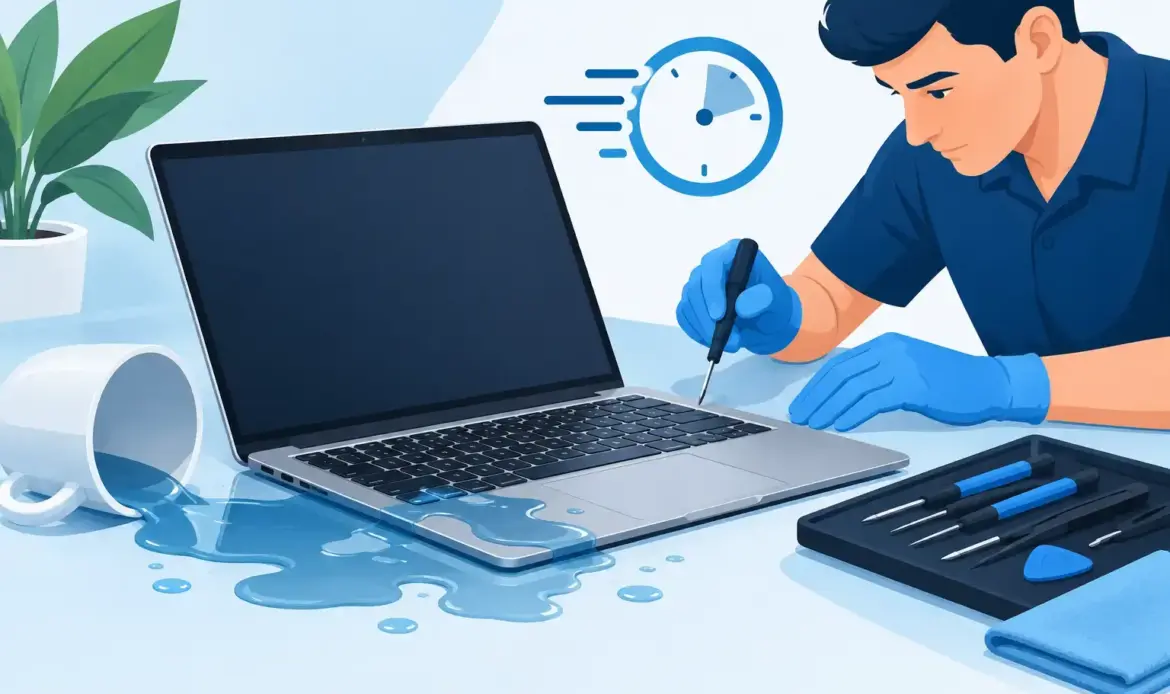
Coffee hits the keyboard. Water seeps into a backpack. A child’s juice cup tips at the kitchen table. In a laptop liquid spill repair case, the first few minutes can make the difference between a clean recovery and a costly motherboard failure. The goal is not to turn your kitchen into a repair shop. It is to stop power, limit spread, and get the device properly diagnosed before corrosion gets a chance to do real damage.
What to Do in the First Five Minutes
Move quickly, but do not panic. If the laptop is plugged in, disconnect the charger right away. Then hold the power button until the computer shuts down. If it is already off, leave it off. Do not test it, restart it, or plug it in “just to see” whether it still works.
Next, remove any connected accessories, including USB drives, a mouse, headphones, memory cards, and external displays. If your laptop has a removable battery and you know how to remove it safely, take it out. Most modern laptops have internal batteries, so do not force open the bottom panel if you are not comfortable doing so.
Place the laptop upside down in a tent-like position, with the keyboard facing down, on an absorbent towel. This helps liquid drain away from the keyboard and internal components rather than deeper into them. Blot visible moisture gently. Avoid pressing hard on the keys, which can push liquid farther inside.
There are a few common reactions that make a spill worse:
- Do not use a hair dryer, heater, or oven. High heat can damage plastic, displays, batteries, adhesives, and delicate board components.
- Do not shake the laptop. Shaking can spread liquid into areas that were initially dry.
- Do not bury it in rice. Rice does not remove residue from inside the computer and can leave dust behind.
- Do not keep trying to power it on. Electricity plus moisture is what causes many of the most serious failures.
A laptop can look dry on the outside while moisture remains trapped below the keyboard, around the battery connector, or under shielding on the motherboard. That is why a quick shutdown is only the first rescue step.
Why Some Spills Cause More Damage Than Others
Plain water is generally less destructive than soda, coffee with cream and sugar, juice, wine, or sports drinks. But no spill is harmless once it reaches powered electronics. Water can create an immediate short circuit. Sugary, acidic, or salty liquids leave conductive residue behind, and that residue continues attacking metal contacts long after the visible liquid has dried.
Timing matters just as much as the liquid itself. A laptop that is powered down immediately may need cleaning and inspection, then return to normal service. A laptop that stayed on while a sweet drink soaked the keyboard may have damage in multiple layers: the keyboard, touchpad, battery circuit, charging system, and motherboard.
The amount and location of the spill also change the repair path. A few drops near a corner are very different from a full cup poured across the keyboard. Side ports, vents, hinges, and keyboard openings give liquid direct routes to sensitive components. Thin laptops can be especially vulnerable because their parts are packed tightly together.
Laptop Liquid Spill Repair Case: What a Technician Checks
Professional liquid-damage repair is more than drying a laptop for a day and hoping for the best. A proper diagnosis starts with opening the device safely, disconnecting power, and checking where the liquid traveled. Certified technicians look for residue, corrosion, burnt components, damaged connectors, and signs of a shorted circuit.
The keyboard is often the first casualty, especially on laptops where liquid can pass through the key openings. In some models, replacing the keyboard is straightforward. In others, the keyboard is built into the top case, which changes the parts and labor involved. A technician should explain that trade-off before repair begins.
The motherboard requires the closest inspection. This is where component-level experience matters. Corrosion can form around tiny chips, capacitors, power rails, display connectors, and charging circuits. In more serious cases, micro-soldering may be needed to replace a damaged component or restore a compromised connection. Not every liquid-damaged motherboard is repairable, but a board-level diagnosis can prevent a good laptop from being written off too early.
The battery deserves special attention as well. If liquid reaches the battery or its connector, the laptop should not be charged until it has been inspected. Batteries store significant energy, and a damaged charging circuit is not something to gamble on at home.
At Phone-Medics, the rescue process focuses on careful diagnosis, high-quality replacement parts when needed, and a clear explanation of what can realistically be saved. That includes the hardware, but it also includes the files you cannot afford to lose.
Can Your Files Be Saved?
Often, yes. The storage drive may survive even when the laptop will not power on. Modern laptops commonly use compact SSDs, while older machines may have traditional hard drives. If the storage hardware is intact and not encrypted in a way that requires the original device, important documents, photos, schoolwork, and business files may still be recoverable.
However, data recovery depends on the model and the extent of the damage. Some newer laptops have storage soldered directly to the motherboard. If that board has severe corrosion, recovering data can become more complex. Devices protected by encryption may also require your account password or recovery key after the hardware is repaired.
If your laptop contains critical files, say so at check-in. That changes the priority. A repair team can focus first on preserving storage and assessing recovery options instead of treating the computer as a routine hardware repair. Avoid repeated power attempts, because every attempt can turn a recoverable problem into a damaged storage or motherboard issue.
Repair or Replace? The Honest Answer Depends
A liquid-damaged laptop is not automatically a replacement candidate. The right choice depends on the device’s age, its original value, the cost of parts, the scope of internal damage, and how essential your data is. A newer laptop with a strong processor, healthy screen, and a single damaged keyboard can be an excellent repair candidate. A much older machine with multiple corroded systems may cost more to restore than it is worth.
There is also a middle ground. Sometimes the most sensible option is to recover the data, replace a damaged component, and use the laptop as a secondary computer. Other times, a full repair is the more cost-effective move because replacing the device would mean paying for a new computer, software setup, and data transfer.
A trustworthy quote should separate the diagnosis from the recommended repair path. You deserve to know whether the issue is limited to a keyboard, involves the charging system, or points to deeper board damage. Fast repair matters, but so does a straight answer.
Do Not Wait for Symptoms to Appear
A laptop may seem fine after a spill, then fail days or weeks later. Sticky keys, a trackpad that clicks on its own, charging problems, random shutdowns, distorted audio, screen flickering, or a burning smell are all reasons to stop using it and seek help. Corrosion is slow, and it does not announce itself on a convenient schedule.
Even if the laptop powers on normally, professional cleaning can be a smart preventive decision after a significant spill. The earlier residue is removed, the better the chance of avoiding a larger repair later. This is especially true with coffee, soda, juice, and any drink containing sugar, milk, or salt.
Your laptop carries more than hardware. It holds work deadlines, school projects, family photos, passwords, and the small daily details that keep life moving. Shut it down, keep it unplugged, and let skilled hands assess the damage. Fast action gives your device its best chance to come back to life.