
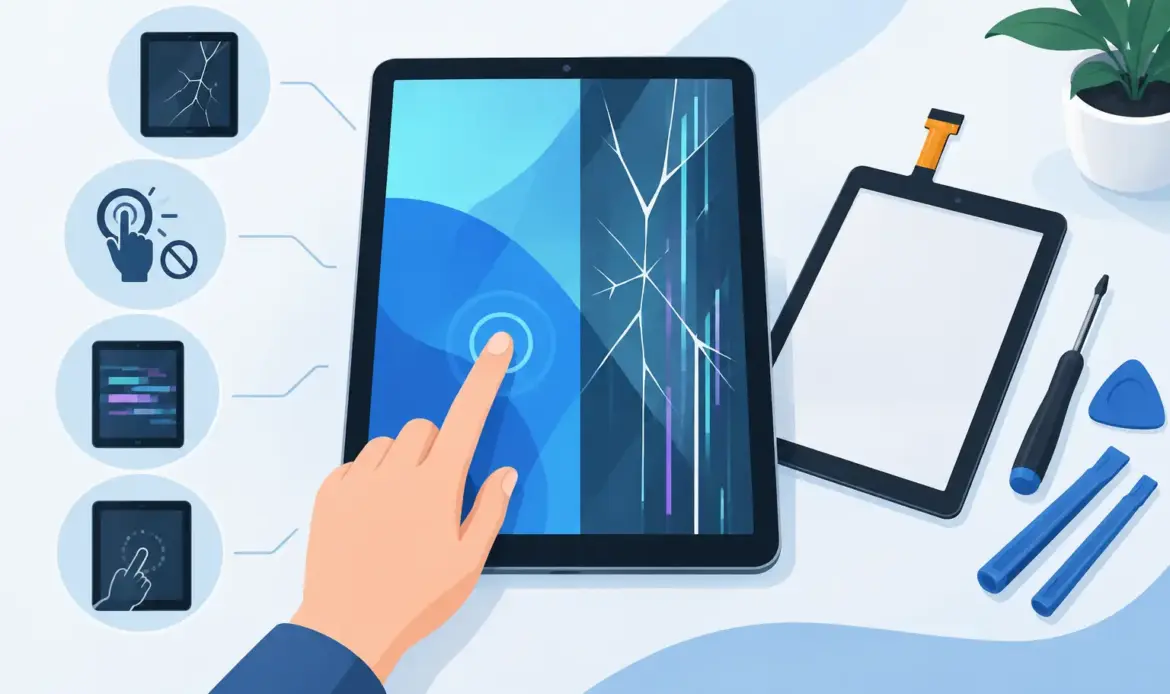
A tablet can look perfectly fine while becoming impossible to use. The display lights up, your apps are still visible, and notifications keep arriving, but taps do nothing or the screen starts pressing buttons on its own. That is often tablet digitizer failure – a touch-input problem that can make a dependable school, work, or family device feel suddenly stranded.
The good news is that a failed digitizer does not automatically mean the tablet is done for. A precise diagnosis can separate a damaged touch layer from a software glitch, screen issue, battery problem, or deeper board-level fault. That difference matters when you are deciding whether to repair, replace, or rescue the data still on the device.
What a Tablet Digitizer Actually Does
The digitizer is the part of the tablet screen that recognizes your finger, stylus, and gestures. It translates physical touch into commands: opening an app, typing a message, drawing a line, or swiping between pages.
On many modern tablets, the digitizer is bonded to the glass and display assembly. That means a cracked screen can damage touch function even if the picture still looks sharp. On other models, the touch layer, glass, and LCD or OLED display can be serviced differently. The repair approach depends on the device design, the extent of the damage, and whether the display is also affected.
A digitizer problem is not the same as a display problem. If your screen has black spots, bright lines, flickering, color distortion, or no image at all, the display itself may be damaged. If the image is clear but touches do not register correctly, the digitizer is the more likely suspect. Sometimes, unfortunately, both parts are injured in the same drop.
Tablet Digitizer Failure Symptoms You Should Not Ignore
Touch problems rarely arrive with a polite warning. They can appear after one bad fall, a little moisture near the charging port, or no obvious incident at all. Pay attention if your tablet begins showing any of these patterns:
- Parts of the screen no longer respond, such as one edge of the keyboard or a strip across the center.
- The tablet responds slowly, misses taps, or requires repeated presses.
- It creates random taps, opens apps, types on its own, or scrolls without your hand on the screen. This is commonly called ghost touch.
- Touch works in one orientation but becomes unreliable when the tablet is rotated.
- A stylus stops working correctly while finger touch remains normal, or the reverse happens.
- The picture is clear, but you cannot enter a passcode, answer a message, or use key apps.
A damaged digitizer can be inconsistent. It may work for a few minutes, then fail again after the device warms up or the screen flexes. Do not assume the issue is fixed because it briefly behaves. Intermittent touch failure can become a full failure at the worst possible time, especially when you need access to work files, school assignments, travel information, or family photos.
Common Causes of Touchscreen Trouble
Physical impact is the usual culprit. A drop can crack the outer glass, break a connection inside the screen assembly, or damage the digitizer even when the glass looks unbroken. Pressure damage can have a similar effect. Sitting on a tablet, packing it too tightly in a bag, or letting a heavy object rest on it can stress the layers under the glass.
Moisture is another frequent cause. Tablets do not need to be fully submerged to suffer trouble. Rain, a spilled drink, bathroom humidity, or a wet countertop can work its way into openings around buttons, charging ports, speakers, and damaged screen edges. Corrosion may continue after the tablet seems dry, which is why touch trouble can show up days later.
Wear and aging can also play a role. A tablet that has been charged daily, carried everywhere, and used by several family members may eventually develop weak connectors, tired batteries, or screen components that no longer perform reliably. A swollen battery can even push against the display from inside, creating lift along the screen edge and touch problems that need prompt professional attention.
Software is possible, too. A frozen app, a failed update, a full storage drive, or a system bug can mimic digitizer failure. That is why a good repair starts with diagnosis rather than immediately replacing a screen.
A Few Safe Checks Before You Assume the Screen Is Broken
Start simple. Remove the case and screen protector, especially if either is cracked, peeling, wet, or unusually thick. Wipe the screen gently with a clean, dry microfiber cloth, then restart the tablet. If the device is responsive enough, install pending system updates and check whether the issue happens across multiple apps or only one.
If touch is unreliable but the display works, connect a compatible keyboard, mouse, or accessibility input device if you have one available. This may let you back up important files before service. Do not repeatedly force the screen, bend the tablet, or press hard around a dead area. Extra pressure can turn a manageable repair into a more expensive one.
When liquid exposure is involved, power the tablet off if possible and keep it off. Do not charge it, blast it with a hair dryer, or bury it in rice. Heat can damage delicate components, and rice does not remove moisture or corrosion from the inside. Fast professional inspection gives a water-damaged tablet its best chance of recovery.
When Repair Makes More Sense Than Replacement
Screen repair is often the practical choice when the tablet is otherwise in good shape, receives current software support, and still meets your needs. It can preserve your settings, apps, files, and familiar setup without the cost and hassle of moving to a new device.
The decision is less straightforward with an older tablet that has multiple problems. If the screen has touch failure, the battery drains rapidly, the charging port is loose, and the device is no longer supported by important apps, putting money into a screen assembly may not be the best value. A qualified technician can give you a realistic recommendation based on the model, condition, parts availability, and total repair cost.
There is also a difference between a standard screen repair and a deeper electronic repair. If a new screen does not restore touch, the issue may involve a connector, touch controller, or damage on the logic board. That is where component-level diagnosis and micro-soldering experience can matter. Replacing parts at random is not a repair strategy. Finding the actual failure is.
Why Quality Parts and Careful Installation Matter
Tablet screens are not all created equal. Low-quality replacement assemblies may have dimmer brightness, weak color, poor touch sensitivity, fitment gaps, or faster failure. On certain devices, a poor repair can affect features such as fingerprint recognition, stylus performance, cameras, proximity sensors, or automatic brightness.
Professional repair means more than removing broken glass. The device must be opened carefully, internal connectors inspected, adhesive cleaned and replaced correctly, and the new screen tested before the tablet goes back into daily use. The technician should verify touch response across the entire panel, not just tap the home screen and call it good.
At Phone-Medics, certified technicians approach a failing tablet like the valuable tool it is. Whether it is a child’s learning device, a field-work companion, a kitchen command center, or your go-to entertainment screen, the goal is a clear diagnosis and a repair that brings it back to life with quality parts and careful workmanship.
Protect Your Tablet After the Rescue
Once touch function is restored, a fitted case and quality screen protector provide useful insurance against the next fall. Keep liquids away from the device, avoid charging it on soft surfaces that trap heat, and do not ignore a lifting screen or a battery that seems unusually hot. Those are warning signs worth addressing early.
If your tablet is showing ghost touches, dead zones, or a screen that looks normal but refuses to listen, do not let it sit in the digital waiting room. A prompt diagnosis can protect your data, prevent additional damage, and help you decide whether repair is the right rescue.