
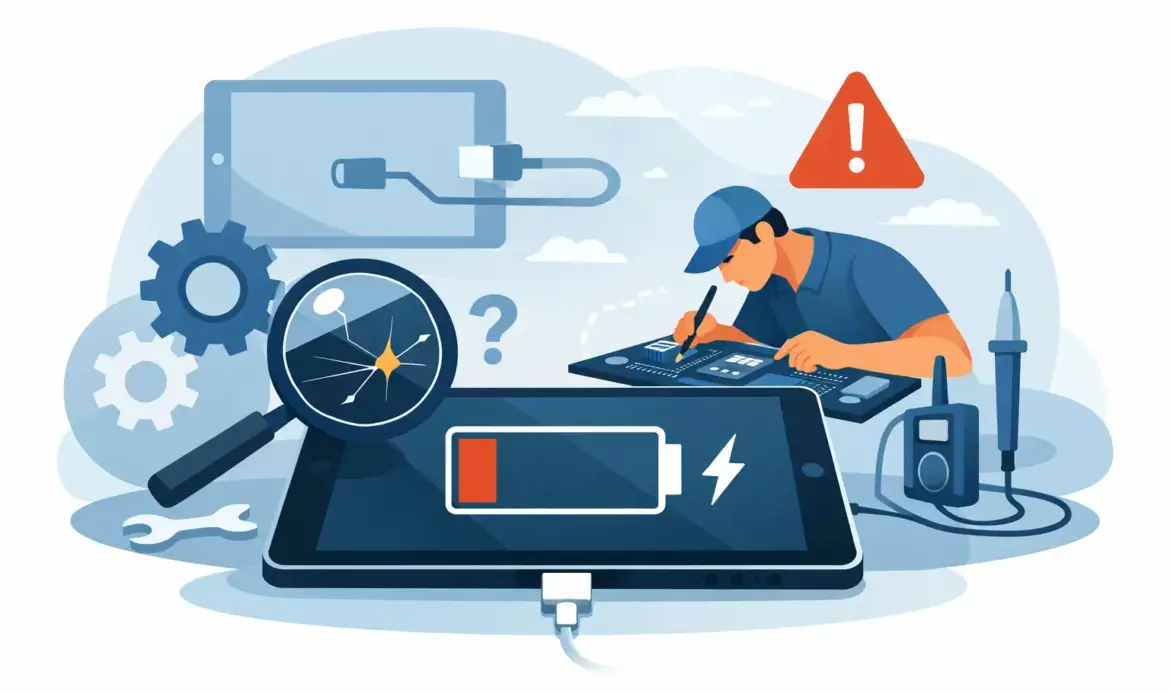
Your iPad is at 2 percent, the charging cable is connected, and nothing happens. Maybe the battery icon flashes, the screen stays black, or the charge level actually drops while plugged in. An iPad won’t charge repair starts with finding the real reason power is not getting where it needs to go – not guessing at a replacement part.
For families, students, and professionals around Clinton Township and Metro Detroit, a dead iPad can stop homework, video calls, point-of-sale tasks, and the daily scramble of keeping a household organized. The good news is that many charging failures are repairable. The key is knowing which checks are safe to try at home and when your tablet needs a technician’s hands-on diagnosis.
Why an iPad Stops Charging
Charging is not one simple function. Your wall outlet, power adapter, cable, charging port, battery, and internal charging circuitry all have to work together. A problem in any one of those places can look exactly like a dead iPad.
Sometimes the answer is simple: a worn cable only charges at a certain angle, a low-output adapter cannot keep up with the iPad, or lint has packed tightly into the port. Other times, the tablet has a tired battery, a damaged port, corrosion from liquid exposure, or a board-level fault that requires precision micro-soldering.
Age also matters. A battery naturally loses capacity over hundreds of charge cycles. An older iPad may still power on, but it can charge very slowly, shut down unexpectedly, or refuse to hold enough power to complete startup. That does not automatically mean the entire device is finished. It means the battery and charging system need to be tested properly.
Safe Checks Before You Book iPad Won’t Charge Repair
Before bringing in your tablet, try a few basic checks that will not put the iPad at greater risk. Use a known-good wall outlet and a quality charging setup that is designed for your iPad. Do not rely on a weak computer USB port when you are trying to revive a fully drained device.
First, inspect the cable and adapter. Look for bent connector ends, split insulation, discoloration, or a loose fit. Swap in another reliable cable and power adapter if available. A cable can appear normal outside while its internal wires are broken.
Next, look into the charging port with a flashlight. Pocket lint, dust, and debris can build up at the bottom of the port and prevent the connector from making full contact. Do not use a metal pin, paper clip, or anything that can scrape contacts or short internal components. If debris is packed in tightly, leave it for a repair professional to remove safely.
Then, leave the iPad connected to a working wall charger for at least 30 minutes. A deeply depleted battery may need time before the screen shows a charging symbol. If the screen remains black, try a force restart for your model while it is still connected to power. If it wakes up but will not gain battery percentage, you have useful information: the iPad has power, but charging is still failing.
Finally, take the temperature seriously. If the iPad is unusually hot, swollen, smells odd, or has a lifting screen, unplug it. Those signs can point to battery damage. Do not press the screen back down or continue charging it overnight.
Signs the Charging Port May Be the Problem
A damaged or dirty port often creates very specific symptoms. The charger may feel loose, charging may cut in and out when the cable moves, or you may need to hold the connector at an angle. Those are not normal quirks to live with. Repeatedly wiggling the cable can make port damage worse.
Port failures can come from daily wear, forceful cable removal, debris, or liquid exposure. With older Lightning-equipped iPads, internal port connections can wear or become damaged. USB-C iPads can also suffer from bent internal pins, debris, or board-level charging faults that look like a port issue from the outside.
A professional inspection distinguishes between a port that needs cleaning, a port assembly that needs replacement, and damage deeper on the logic board. That distinction protects you from paying for the wrong repair.
When the Battery Is the Likely Culprit
Battery trouble tends to show up gradually, though not always. Your iPad may charge to a certain percentage and stop, lose power quickly after unplugging, restart during demanding apps, or sit on the red battery screen for an unusually long time. A battery that has weakened with age can no longer accept or deliver power consistently.
A quality battery replacement can bring a useful iPad back into daily service. Still, battery replacement is not the right answer if the tablet has liquid damage or a charging-circuit issue. Installing a new battery without testing the rest of the power path can leave you with the same problem and an unnecessary expense.
This is why diagnosis matters. A technician can check how the iPad responds to power, inspect the port, measure charging behavior, and identify whether the battery is the failure point. Good repair is about restoring reliable use, not just getting a charging icon to appear once.
Liquid Damage Can Hide Behind a Charging Problem
If charging trouble started after a spill, rain exposure, a damp bag, or a humid environment, do not assume the iPad dried out and recovered. Moisture can corrode connectors and tiny board components over time. The iPad may charge normally for a day or two, then begin refusing power as corrosion spreads.
Avoid rice, heat guns, hair dryers, and repeated attempts to charge a wet device. Rice does not remove corrosion, while excess heat can damage the battery, display, and internal adhesives. Power should be disconnected as soon as possible, and the device should be assessed by someone equipped to inspect internal damage.
For board-level faults, skilled micro-soldering can sometimes repair a failed charging circuit or damaged connection that would otherwise make the iPad seem beyond saving. Whether that repair makes sense depends on the model, the extent of damage, and the condition of the device overall. A clear estimate helps you decide whether repair is the smarter move than replacement.
What a Professional iPad Charging Diagnosis Should Include
A reliable repair shop should not jump straight to a battery or port replacement without asking questions. When did the issue begin? Was there a drop or liquid exposure? Does the iPad recognize a cable? Does it power on, get warm, or show any battery symbol? Those details narrow the search quickly.
The physical inspection should check the port, cable connection, signs of impact, battery condition, and possible moisture indicators. From there, a technician can test charging response and isolate whether the fault is external, battery-related, port-related, or on the board.
At Phone-Medics, certified technicians approach charging failures like a device emergency room: stabilize the problem, identify the cause, and recommend the repair that gives your iPad the best chance of a dependable return. High-quality replacement parts and careful handling matter, especially when your tablet holds school files, work apps, photos, and family accounts.
Should You Repair or Replace a Non-Charging iPad?
It depends on the model, repair needed, and how you use the device. A newer iPad with a bad battery or worn charging port is often well worth repairing. It may have years of useful life left, and repair can cost far less than replacing it.
For a much older model with severe liquid damage, multiple failing components, or limited software support, replacement may be the better long-term value. An honest diagnosis should make that trade-off clear. You deserve to know whether you are paying to restore a dependable tool or only delaying a larger problem.
If your iPad will not charge, resist the urge to force the cable, keep trying questionable chargers, or open the device yourself. A quick professional diagnosis can turn a frustrating black screen into a straightforward fix. Bring your tablet in while the problem is fresh, and give your everyday device a real chance to come back to life.