
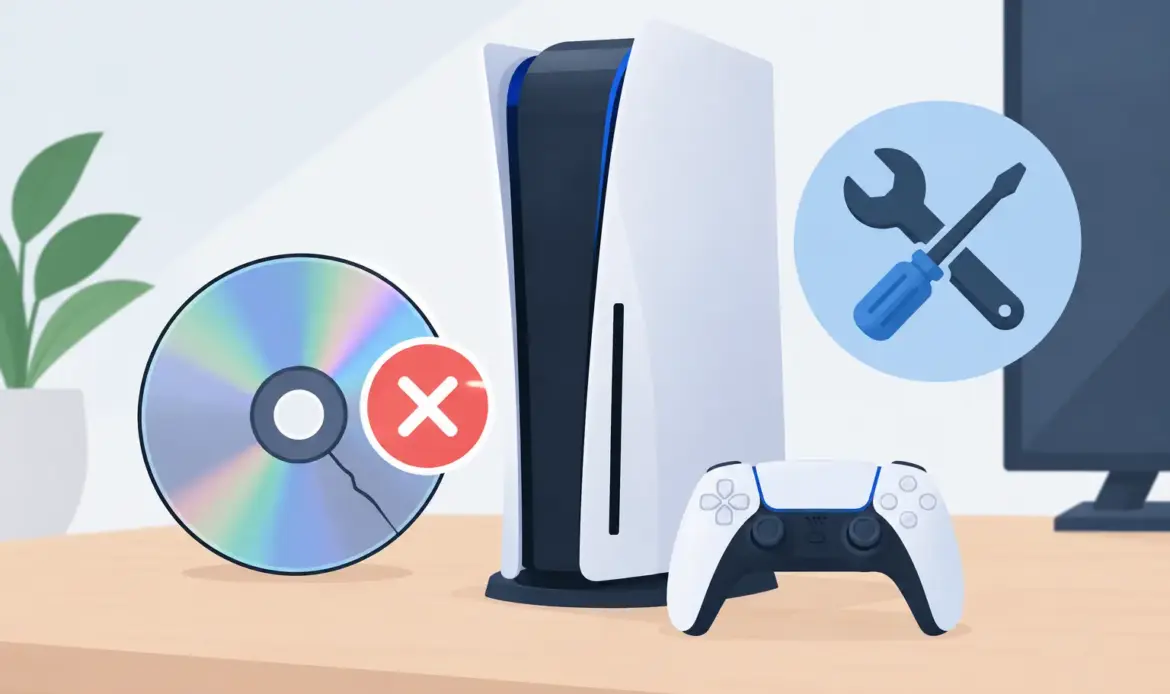
A game night can stop cold when a console rejects the disc you played yesterday. Before you assume the system is finished, there are a few safe ways to fix console disc errors and narrow down what is actually failing. The goal is not to force a disc into a struggling drive. It is to protect your games, your console, and your save data while finding the right repair.
Start With the Disc, Not the Console
The fastest clue is whether the problem follows one disc or happens with every disc. Remove the game and inspect the shiny reading surface under a bright light. Fingerprints, smudges, and light residue can keep the laser from reading data correctly, especially on older discs.
Clean the disc with a clean microfiber cloth, moving in straight lines from the center outward. Do not wipe in circles. Skip paper towels, window cleaner, and abrasive products, which can add tiny scratches or damage the protective layer. Let the disc dry completely before trying it again.
Then test a second game that is known to work. If one disc fails but another launches normally, the disc is likely the issue. A deeply scratched or cracked disc may need professional resurfacing or replacement. If every game produces a read error, the console’s disc drive deserves a closer look.
Check the Easy Software Fixes First
A disc error is not always a hardware emergency. Consoles can misread games after an interrupted update, a corrupted install, or a temporary system glitch. Start by fully powering down the console. Do not just put it into rest mode. Turn it off, unplug it for about a minute, then reconnect it and restart.
Next, make sure the console software is current. Install any available system update, then check whether the game itself has an update waiting. For games that install content to internal or external storage, delete the game installation and reinstall it from the disc if the error appears after the disc is recognized. Your saved progress is often stored separately, but confirm your save status or cloud backup before removing anything.
On consoles with storage-management or safe-mode tools, rebuilding the database or clearing cached system data can help when the issue is tied to the installed game files rather than the drive. Follow your console’s official on-screen options carefully. Avoid random reset advice from videos or forums, since a factory reset can erase local data and usually will not repair a worn disc drive.
Check How the Console Is Sitting
This sounds small, but it can matter. A console that is cramped inside an entertainment center, running hot, or sitting unstably may have trouble with spinning discs. Give the system open airflow, place it on a level surface, and let it cool down before another test.
If the console is vertical, check that its stand is properly attached and that it is not being bumped when the disc spins. This is not a cure for a mechanical defect, but it removes a simple source of vibration and overheating from the equation.
Signs the Disc Drive Needs Repair
A healthy disc drive should accept a disc, spin it up briefly, and load the game without repeated clicking or grinding. When it cannot, the sound and timing of the failure offer useful clues.
A clicking drive may have a weak laser assembly, a worn rail, or a mechanical alignment issue. A console that accepts and immediately ejects discs may have a sensor or loading mechanism problem. If it reads DVDs or Blu-ray movies but not games, or reads some game formats but not others, the laser may be weakening rather than completely dead.
Watch for these common warning signs:
- The console says the disc is unreadable with multiple clean, undamaged games.
- Games install but fail during play, cutscenes, or specific loading screens.
- The drive makes grinding, repeated clicking, or unusually loud spinning noises.
- The console takes several attempts to recognize any disc.
- The system ejects discs on its own or will not accept them properly.
These symptoms can overlap, which is why diagnosis matters. A failing laser can look like a bad disc. A damaged drive cable can look like a software issue. Replacing parts without identifying the fault may cost more and still leave the console sidelined.
What Not to Do When You Fix Console Disc Errors
The internet is full of shortcuts that can turn a repairable console into a bigger problem. Do not spray cleaner, lubricant, or compressed air directly into the disc slot. Dust may be part of the issue, but high-pressure air can push debris deeper into the drive or affect delicate components.
Skip lens-cleaning discs as well. They are not a reliable answer for modern drives, and a console that is clicking, ejecting discs, or failing every game likely has a mechanical or electronic problem that a cleaning disc cannot solve. Never force a disc into the slot or pull one out if the mechanism is holding it.
Opening a console also has trade-offs. Older systems may be out of warranty, but disc-drive repairs still involve fragile ribbon cables, precise alignment, and sometimes paired electronic components. A replacement drive is not always plug-and-play. On some models, the original drive board or paired components must be preserved or professionally transferred for games to read correctly.
When a Professional Repair Is the Better Save
If you have tested multiple clean discs, restarted the console, updated its software, and ruled out a corrupted game install, it is time to stop guessing. A professional technician can test the laser, spindle motor, sensors, cables, power delivery, and drive board before recommending a repair.
This approach is especially worthwhile for a console that is otherwise in good shape, a hard-to-replace older system, or a current-generation console with a valuable game library. Repair is often more practical than replacing the entire system, but it depends on the model, the extent of damage, and the cost of needed parts. An honest diagnostic should make that trade-off clear before work begins.
For gamers in Clinton Township and across Metro Detroit, Phone-Medics can inspect console disc-drive faults with the same careful, hands-on approach used for other essential devices. Certified technicians focus on the actual failure, use high-quality replacement parts when needed, and help protect the console you already know and enjoy.
Protect the Drive After It Is Working Again
Once your console is reading discs reliably, a few habits can help it stay that way. Store games in their cases, handle them by the edges, and keep the console in a ventilated spot away from smoke, pet hair, and heavy dust. Avoid moving the console while a disc is spinning, even if the game appears to be running normally.
Most importantly, pay attention when a drive starts becoming inconsistent. A console that only reads games after several tries is asking for help before it becomes a complete no-read failure. Bringing it in while it still powers on and accepts discs gives a technician a better starting point – and gives you a better chance to get back to the game without replacing your system.