
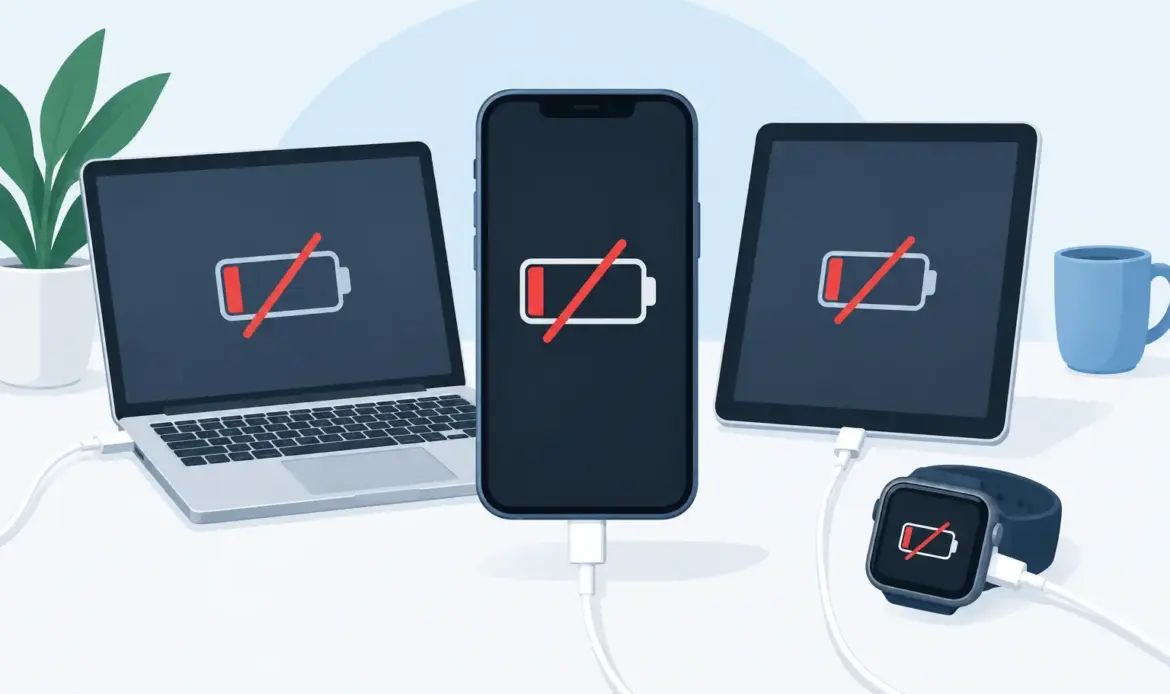
A device that will not charge can turn a normal day into a scramble. Your phone is stuck at 2 percent before work, your laptop dies during class, or a game console will not power up when the family is ready to play. Knowing how to diagnose charging failure helps you separate a simple cable problem from a repair that needs a trained technician.
The good news is that many charging issues start outside the device. The less-good news is that a damaged battery, worn charging port, or failed board component can look almost identical at first. Start with the safe, obvious checks, then watch for the clues that tell you it is time to bring in the tech lifesavers.
Start With the Power Source, Not the Device
Before assuming your phone, tablet, laptop, or console is failing, test the full charging setup. Plug the charger directly into a known-working wall outlet, not a loose power strip, vehicle adapter, or USB hub. If possible, test that outlet with another device.
Then inspect the charging cable. Cables often fail near the connector or where the cord bends at the power brick. Look for fraying, exposed wire, bent tips, discoloration, or a connection that only works when the cable is held at a certain angle. A cable can look fine on the outside and still have broken wiring inside, so testing with a known-good cable is more useful than a quick visual check.
Use a charger with the proper power rating for the device. A low-power USB adapter may show the charging symbol but add battery percentage very slowly, especially on laptops, tablets, and modern fast-charging phones. Some USB-C cables support data but cannot provide enough power for larger devices. For a clean test, use the original charger when available or a high-quality compatible replacement.
If your device charges normally with another cable, adapter, or outlet, you have found the problem without putting the device through unnecessary repair. Replace the failed accessory with a quality part. Cheap, damaged, or poorly matched chargers can create heat, charge inconsistently, and make a healthy device appear broken.
How to Diagnose Charging Failure at the Port
The charging port is the front door to your device’s power system. It collects lint, pocket debris, corrosion, and wear every day. If the cable does not sit firmly, falls out easily, or has to be positioned just right, inspect the port under good light.
Pocket lint is a common culprit in phones and tablets. It can pack tightly into the bottom of a port and prevent the connector from reaching its contacts. Never use a metal pin, paper clip, knife, or anything that can scrape or short the delicate contacts. With the device powered off, you may gently remove loose debris using a dry, nonmetal tool and a light touch. If you are not certain what you are seeing, stop there. Forcing debris deeper can turn a cleaning job into a port replacement.
Watch for signs of physical damage: bent contact pins, a cracked center tab, green or white residue, or a port that shifts inside the frame. Green or white buildup can point to moisture corrosion, even if the device was never fully dropped in water. Humidity, a spilled drink, and charging after exposure to moisture can all leave damage behind.
Laptops and game consoles need the same attention, although their charging jacks can fail differently. A loose barrel jack, a bent USB-C port, or a charging socket that moves when touched may indicate a damaged internal connection. Repeatedly wiggling the cable to make it work can worsen that damage.
Read the Symptoms Before You Restart Everything
Charging failure is not always a complete failure. The pattern matters. A phone that charges only when powered off may have a software conflict, a weak charger, or a battery that cannot keep up with power demand. A laptop that says “plugged in” but never gains battery percentage could have battery health issues, charger communication trouble, or a board-level charging fault.
If the device turns on, look at its battery message and behavior. Does it show a lightning bolt, battery icon, or charging notification? Does the percentage rise, hold steady, or drop while connected? Does it charge quickly for a few minutes and then stop? These details give a repair technician a much faster path to the real fault.
Heat is another clue. A slightly warm charger can be normal. A device that becomes unusually hot, smells burnt, flashes, restarts repeatedly, or shuts down during charging is not asking for more testing. Disconnect it from power and arrange professional diagnosis. Heat can come from a failing battery, a shorted component, or an incompatible charger.
A drained battery can also make a healthy device seem dead. Leave it connected to a verified working charger for 20 to 30 minutes before deciding it will not respond. Then try a normal restart. On some devices, a forced restart may restore a frozen charging display, but the button combination depends on the model. Avoid repeated forced restarts if the device is hot, wet, or showing battery swelling.
Rule Out Software and Settings Problems
Software does not usually cause a physically loose charging connection, but it can affect what you see on screen. A frozen operating system may fail to update the battery indicator. Background apps, poor signal strength, high screen brightness, and active gaming can consume power faster than a weak charger supplies it.
Restart the device after testing a different outlet, cable, and adapter. On phones and tablets, check whether the battery percentage changes while the screen is off and the device is not being used. On laptops, check battery settings and see whether the operating system reports a charger warning or battery service recommendation.
For wireless charging, remove thick cases, metal plates, magnetic accessories, and cards from the back of the device. Align the phone carefully on the charging pad and test another compatible pad if you can. Wireless charging is convenient, but it is less forgiving than a cable. Heat, poor alignment, and an oversized case can interrupt the charge without meaning the phone itself has failed.
Know When the Battery Is the Patient
Batteries wear down over time. A device may still charge, but it will drain quickly, shut off at 20 percent, or take much longer than usual to reach a full charge. Those symptoms can be mistaken for charging failure because the real issue is that the battery no longer holds the energy it receives.
Age matters, but usage matters more. Heavy gaming, frequent fast charging, heat exposure, and years of daily charge cycles all take a toll. A battery replacement can be the practical fix when the port is stable and the device recognizes a charger but runtime has become unreliable.
Do not ignore physical battery warning signs. Stop charging and stop using the device if you notice a lifted screen, bulging back cover, expanding laptop case, chemical smell, or excessive heat. A swollen battery needs careful professional handling. Do not press it back into place or attempt to puncture it.
When Charging Failure Needs Professional Repair
If known-good accessories do not help, the port is damaged or corroded, or the device has a history of liquid exposure or impact, the issue may be inside the device. Charging circuits include small components that regulate incoming power and protect the battery. A drop, power surge, liquid damage, or failed component can interrupt that path.
This is where precision diagnosis matters. Replacing a battery or charging port without testing can waste money if the actual failure sits on the logic board. Component-level and micro-soldering repairs can sometimes restore devices that would otherwise be written off, but the right repair depends on the device model, its age, the extent of damage, and the cost compared with replacement.
Bring the device in with its charger if possible, and explain exactly what changed before the issue began. Mention whether it was dropped, exposed to liquid, updated recently, or charged with a damaged cable. At Phone-Medics, certified technicians can test the charging system, identify whether the failure is in the accessory, port, battery, or board, and recommend a repair built around the real problem.
Your device does not need to stay stranded because the battery icon stopped cooperating. Start with safe tests, do not gamble with heat or swelling, and get expert help before a small charging problem becomes a full device emergency.