
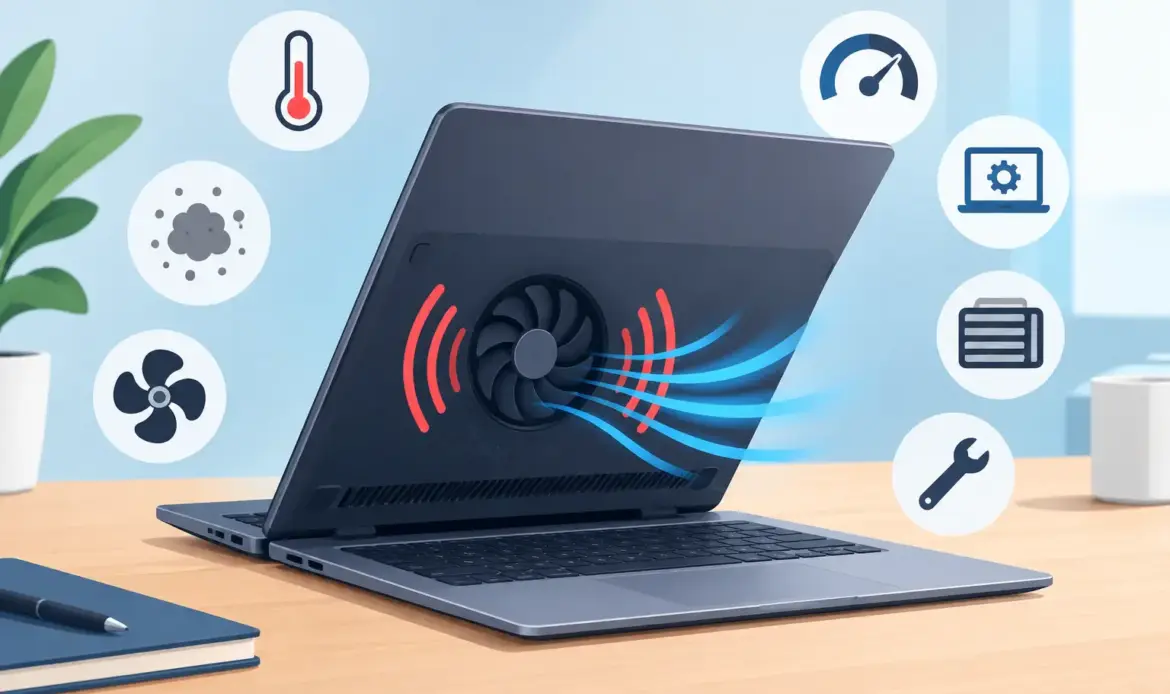
That sudden rush of fan noise can make a laptop feel like it is about to take off from your kitchen table. If you are asking, “why is laptop fan loud,” your computer is usually trying to protect itself from excess heat. The fan is doing its job, but constant or unusually loud noise can point to a problem that deserves attention before heat turns into slowdowns, shutdowns, or damaged components.
A loud fan is not always an emergency. Gaming, video editing, large downloads, and a warm room can all make a healthy laptop work harder. What matters is the pattern: whether the noise is new, whether it continues while the laptop is idle, and whether it comes with other warning signs.
Why Is Laptop Fan Loud? It Is Usually Fighting Heat
Every laptop creates heat as its processor, graphics chip, battery, and storage work. The cooling fan pulls air through vents and across internal components to carry that heat away. When temperatures climb, the system tells the fan to spin faster. More speed means more noise.
Thin laptops are especially prone to sounding louder than larger desktop computers. Their cooling systems have less space, smaller fans, and tighter air channels. A compact machine can still be perfectly healthy while sounding busy during demanding tasks.
The trouble starts when the fan has to run hard during simple work, such as checking email or writing a document. That can mean the heat is not escaping properly, a program is using more power than it should, or a hardware issue is developing.
7 Common Reasons Your Laptop Fan Is So Loud
1. Dust is blocking the cooling path
Dust, pet hair, and lint collect around the air vents, fan blades, and heat sink over time. Even a thin layer can restrict airflow. The fan responds by spinning faster, but it cannot cool the system efficiently because the air has nowhere to go.
This is common in homes with pets, workshops, vehicles, and busy family spaces. It is also common on laptops that are regularly used on blankets, couches, or carpet. Soft surfaces can block bottom vents and pull fibers directly into the cooling system.
2. The laptop is working harder than you realize
A browser with dozens of tabs, a video call, cloud syncing, photo editing, and a game launcher running in the background can put serious demand on a laptop. One troublesome browser tab or a frozen application may push processor usage high enough to trigger the fan.
On Windows, check Task Manager to see which apps are using the most processor, memory, or disk activity. On a Mac, Activity Monitor shows similar information. Closing programs you no longer need may quiet the fan within a few minutes.
3. Background updates or malware are consuming resources
Operating system updates, antivirus scans, file backups, and cloud photo uploads can temporarily make a fan loud. If the noise appears during an update and fades afterward, the laptop may simply be catching up.
If the fan is loud every day while the computer is barely being used, do not ignore it. Unwanted software, browser extensions, or malware can run in the background and consume processing power. A trusted security scan is a smart first step, especially if you also notice pop-ups, strange redirects, or a slower computer.
4. The laptop is sitting in a hot or blocked location
Your laptop needs breathing room. Using it directly on bedding, a lap blanket, or a thick couch cushion blocks the vents that feed the fan. Leaving it in a hot car or working beside a sunny window can raise its starting temperature before you even open an app.
Move the laptop to a hard, flat surface and make sure the vents are clear. A laptop stand can help with airflow, but it will not solve a fan, dust, or internal cooling problem by itself.
5. Aging thermal paste is no longer transferring heat well
Inside the laptop, thermal paste helps move heat from the processor or graphics chip into the heat sink. Over years of heating and cooling, that material can dry out or lose effectiveness. The fan then has to work overtime because heat is not transferring away from the chip as it should.
This is not a repair most people should attempt without experience. Modern laptops can have fragile clips, hidden screws, delicate cables, and tightly packed components. A precision diagnosis can confirm whether thermal paste, a heat sink issue, or another fault is actually causing the high temperatures.
6. A failing fan is making mechanical noise
Not all loud fans sound like rushing air. Clicking, grinding, rattling, buzzing, or a high-pitched whine can mean the fan itself is worn, loose, or damaged. A fan with a failing bearing may still spin for a while, but it can become unreliable quickly.
If you hear mechanical noise, back up important files and have the laptop checked soon. Waiting for the fan to stop completely can lead to overheating, emergency shutdowns, and possible damage to the motherboard or battery.
7. The battery or charging system is running too hot
A swollen battery, damaged charging circuit, or incompatible charger can produce extra heat. You may notice that the fan gets loud mostly while the laptop is charging, or that the bottom case is unusually warm. A lifting trackpad, separated case, or bulging underside is an urgent warning sign.
Stop using a laptop with visible swelling. Do not press the case back into place or try to puncture the battery. It needs professional attention and safe battery handling.
Safe Steps to Try Before a Repair Visit
Start with the simple checks. Shut the laptop down, unplug it, and let it cool on a hard surface. Once it is off, inspect the exterior vents for visible dust. You can use short, controlled bursts of compressed air around the vents, holding the can upright. Avoid household vacuums, which can create static, and avoid forcing objects into the vent openings.
Then restart the laptop and close unneeded programs. Check for a runaway app in Task Manager or Activity Monitor, install pending system updates, and run a reputable malware scan. If the fan quiets down only after closing one program, the laptop may be healthy but overloaded by that software.
Pay attention to power settings, too. High-performance modes can keep the processor running more aggressively and make the fan louder. Switching to a balanced or power-saving mode can reduce heat during everyday browsing and schoolwork. The trade-off is that demanding apps may feel a little less responsive.
When Loud Fan Noise Needs Professional Help
Bring the laptop in for diagnosis if the fan is loud while the computer is idle, if it shuts down unexpectedly, or if it becomes too hot to use comfortably. Repeated overheating can shorten the life of internal parts and may cause the system to throttle performance to protect itself.
Grinding or clicking sounds, burning smells, charging-related heat, liquid exposure, and battery swelling should move to the top of your priority list. These are not problems to solve by repeatedly restarting the computer and hoping for the best.
A technician can safely open the device, clear packed dust from the fan and heat sink, test fan operation, inspect the battery, and identify whether the issue is software-related or requires a replacement part. For Metro Detroit laptop owners, Phone-Medics can provide hands-on diagnosis and repair that protects the device you rely on for work, school, and everyday life.
Your laptop does not have to keep shouting for help. A little airflow maintenance may be enough, but persistent noise is your cue to act before a small cooling issue becomes a bigger rescue.