
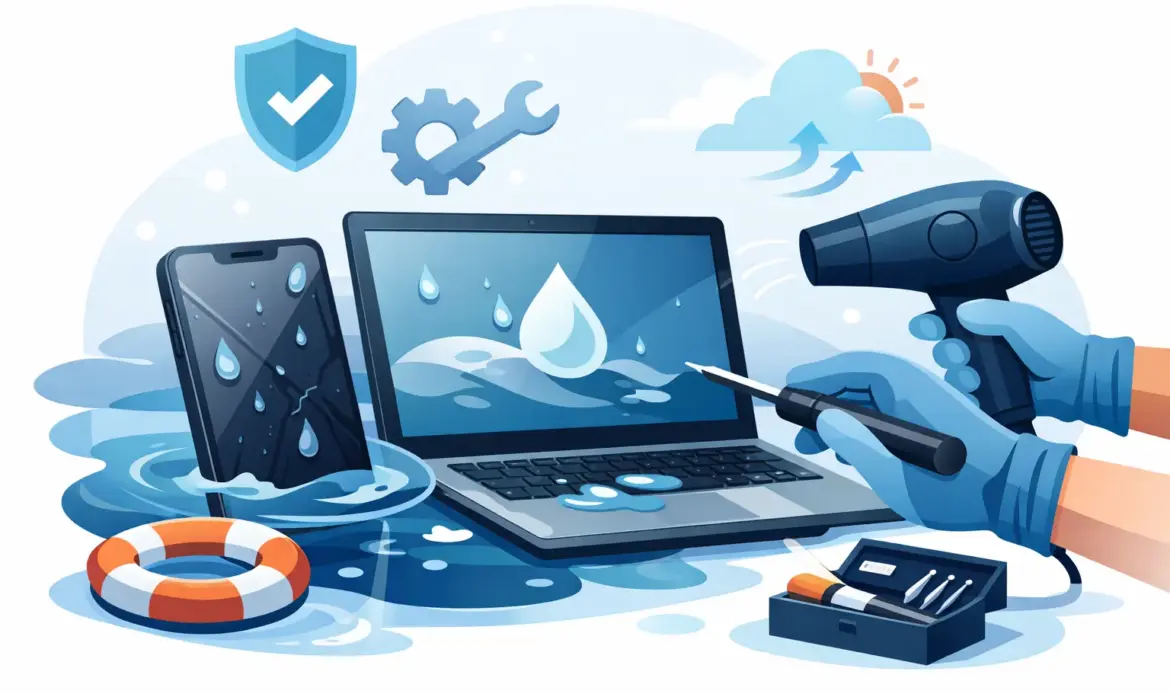
A phone slips into the sink. A laptop gets hit by a coffee spill. A game console meets a basement flood. The first few minutes after liquid exposure can decide whether your device gets rescued or develops corrosion that keeps spreading long after it appears dry. This device water damage recovery guide gives you the safest next moves before a small accident turns into a full device emergency.
First Rule: Cut the Power
Water itself is not always the only enemy. The bigger danger is electricity moving through moisture and minerals, creating short circuits on delicate components. If your device is on, turn it off right away. Do not test the screen, open apps, make a call, or plug it in to see whether it still charges.
For a phone or tablet, remove it from the liquid, power it down, and take off the case. If it has a removable SIM tray, remove it as well. For a laptop, shut it down, disconnect the charger, and unplug every accessory. If the battery is removable, take it out only if you can do so easily and safely. Do not force anything open.
With a desktop computer, gaming console, or other plugged-in device, disconnect power at the outlet before handling it. If water reached a power strip, outlet, or exposed wiring, keep clear and use caution. Electrical safety comes before saving the hardware.
What to Do in the First 10 Minutes
Once the power is off, gently blot visible moisture from the outside with a clean, lint-free cloth. Keep the device oriented so liquid can drain away from its deepest openings. A phone can be held with its charging port facing down. A laptop should be opened carefully and positioned in an upside-down tent shape only after it is powered off and unplugged, allowing liquid to drain rather than settle inside.
Do not shake the device. Shaking may push water farther into the screen, camera, speakers, keyboard, or internal boards. Avoid pressing buttons repeatedly for the same reason.
Think about what spilled, too. Clean tap water is less damaging than saltwater, pool water, soda, coffee, juice, beer, or soapy water. Drinks and contaminated water leave conductive residue behind, and that residue can corrode charging ports, battery connectors, cameras, and microscopic board components. A device that was soaked in a sugary drink needs professional attention even if it powers on later.
If you have a waterproof-rated phone, do not assume it is safe just because it was advertised as water resistant. Water resistance can weaken with age, a cracked back glass, a worn seal, prior repair, drops, and normal daily use. Those ratings also do not guarantee protection from hot water, high-pressure sprays, saltwater, or chemical-filled liquids.
Device Water Damage Recovery Guide: What Not to Do
The wrong home remedy can turn a recoverable device into a much harder repair. Rice is the best-known example. It may absorb some surrounding humidity, but it does not remove contamination from inside a device. Rice dust can also lodge in ports and openings. More importantly, waiting for rice to work allows corrosion to continue on the circuit board.
Skip the hair dryer, oven, radiator, and direct sunlight. High heat can warp screens, damage batteries, loosen adhesives, and drive moisture into places it did not reach at first. Compressed air is another risky move because it can force liquid under shields and deeper into connectors.
Do not charge a wet phone or reconnect a wet laptop battery. Charging is one of the most common moments when water damage becomes permanent board damage. Also resist the urge to take apart a modern phone, tablet, or console without the right tools. Many devices use fragile cables, adhesive seals, and tightly packed components that are easy to damage during a rushed opening.
Waiting until the device “acts weird” is not a safe test. Corrosion can develop quietly. It may start as a working device with a foggy camera or unreliable speaker, then become a no-power issue, charging failure, touch problem, random restart, or data loss days later.
Why Professional Cleaning Can Save a Device
A proper water-damage repair is more than drying the outside. Certified technicians inspect the device internally for moisture indicators, residue, corrosion, and damaged components. The goal is to stop the damage at its source, clean affected areas, and identify which parts can be restored and which need replacement.
For phones and tablets, this may involve opening the device, disconnecting the battery, cleaning the board and connectors, inspecting cameras and charging ports, and testing every major function before reassembly. With laptops, technicians look closely at the keyboard, trackpad, battery, logic board, display connections, and storage drive. A spill in one area can travel across the keyboard and reach components far from the original impact point.
Some cases require component-level micro-soldering. That is especially true when liquid has damaged tiny board-mounted connectors, power-management circuits, or charging components. It is precise work, but it can be the difference between replacing an expensive device and bringing it back to life.
There are trade-offs. If a device was submerged for a long time, exposed to saltwater, or left powered on after the spill, recovery may be limited. A professional diagnosis gives you a clear picture of the damage and a practical repair path, rather than guessing based on whether the screen lights up.
Protect Your Data Before It Is Too Late
Water damage is not only about the hardware. Your photos, messages, school files, work documents, game saves, and authentication apps may be the real emergency.
If the device is completely dry on the outside and still operating normally, you may be tempted to back it up immediately. That decision depends on the exposure. After a tiny splash that never entered a port or opening, a quick backup may be reasonable. After a drop in water, a major spill, or any sign of moisture in a port, do not power it on just to create a backup. The risk of a short circuit can outweigh the benefit.
Tell the repair technician what data matters most. A device that will not power on may still have recoverable storage, especially if corrosion is addressed quickly. Do not factory reset the device before an evaluation unless you are certain your data is already protected. A reset will not remove liquid damage, and it can complicate data recovery options.
Watch for Delayed Symptoms
Even after a device appears recovered, stay alert over the next several days. A lingering moisture problem may show up as a battery that drains unusually fast, charging that cuts in and out, muffled audio, a flickering display, ghost touches, camera fog, overheating, or unexpected shutdowns.
Treat a swollen battery, unusual heat, smoke, odor, or crackling sound as urgent warning signs. Stop using the device, disconnect it from power, and place it on a nonflammable surface away from people and pets. Damaged lithium-ion batteries should never be ignored.
For laptops and desktops, keyboard keys that stop responding, a trackpad that clicks on its own, or an error booting up can point to liquid beneath the surface. For gaming consoles, watch for power failures, disk-read errors, controller connection issues, or a fan that suddenly runs much louder than normal.
Get a Fast Diagnosis, Not a False Sense of Security
Fast action gives your technology its best chance, but speed does not mean panic. Power it down, keep it unplugged, blot the exterior, and avoid heat, rice, and repeated testing. Then get an experienced technician to inspect what you cannot see.
At Phone-Medics, our tech lifesavers handle water-damaged phones, tablets, laptops, desktops, and gaming consoles with careful diagnosis, quality parts, and repair options that make sense for your device. The sooner a liquid-damaged device is checked, the better the chance of stopping corrosion before it claims the parts you rely on every day.
Your device may look quiet after a spill, but the clock is still running underneath the surface. Give it the best possible rescue by leaving the power off and getting help before the next charge, restart, or “just one quick test” makes the damage worse.