
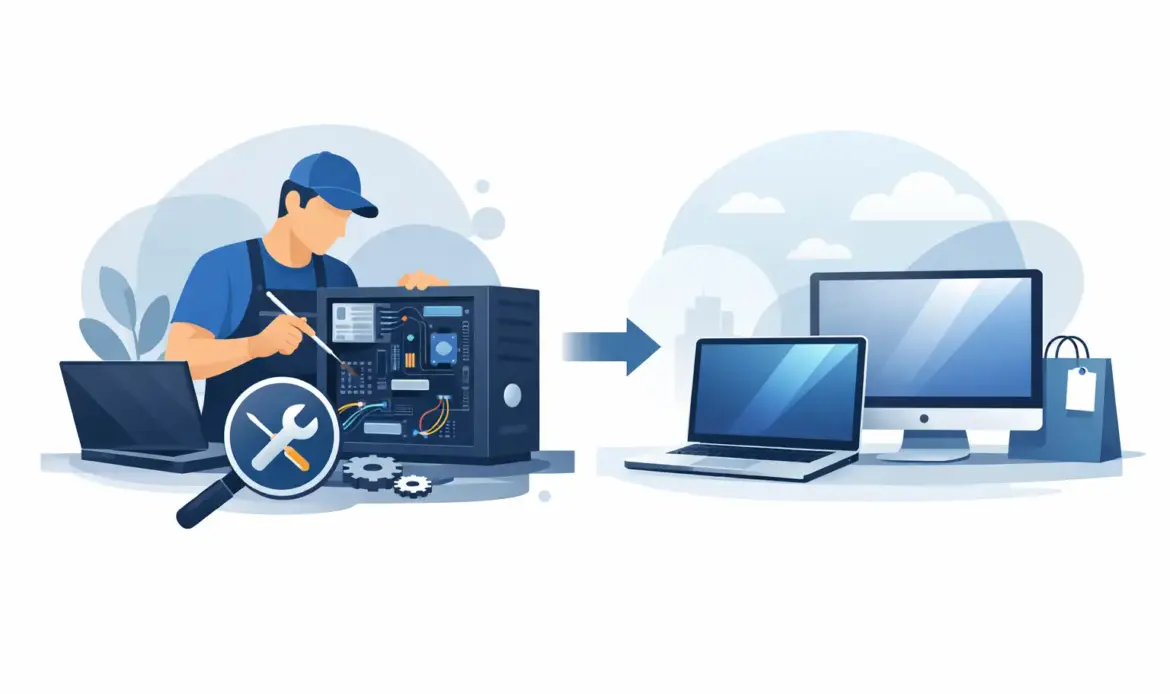
A computer rarely fails at a convenient time. It happens when a deadline is due, your child needs homework printed, your small business needs an invoice, or years of family photos are sitting behind a screen that will not turn on. Computer repair is not just about getting a machine to boot again. It is about protecting the work, memories, and daily routines stored inside it.
A slow laptop or unresponsive desktop does not automatically belong in the recycling bin. Many common problems have practical, cost-effective fixes when they are diagnosed early. The key is knowing what you can safely check, what warning signs deserve immediate attention, and when a trained technician should step in.
The signs your computer needs repair
Computers usually send distress signals before they quit completely. A laptop that gets unusually hot, a desktop that restarts without warning, or a machine that takes ten minutes to reach the login screen is asking for help. Ignoring those symptoms can turn a manageable repair into lost files or a more expensive component failure.
Frequent freezing can come from a worn hard drive, failing memory, too many background programs, malware, or an operating system problem. That is why guessing is rarely the best plan. One symptom can have several causes, and replacing the wrong part wastes time and money.
Pay close attention if you hear repeated clicking from a traditional hard drive, notice a burning smell, see a swollen laptop battery, or find that the charging port only works at a certain angle. Shut the computer down if it is overheating, smells electrical, or has been exposed to liquid. Continuing to use it may cause additional damage, especially to the motherboard or storage drive.
When computer repair makes more sense than replacement
Replacing a computer feels like the simple answer, but it is often the more expensive one. A system with a healthy processor and display may only need a battery, charging port, keyboard, cooling repair, storage upgrade, or software cleanup. Those repairs can give a familiar machine several more useful years.
An older computer can also feel dramatically faster after the right upgrade. Replacing a failing mechanical hard drive with a solid-state drive, for example, can reduce startup times and make everyday tasks feel far less frustrating. Adding memory can help when a computer slows down while juggling browser tabs, school software, video calls, and documents.
The decision depends on the machine’s age, condition, and purpose. A five-year-old laptop with a bad battery may be an excellent repair candidate. A very old system that cannot run the software you need, has multiple failing parts, and requires a costly motherboard may be harder to justify. A good diagnosis should give you a clear picture of both the repair and the trade-off, without pressuring you to spend more than makes sense.
Repair is often the better choice when:
- The screen, keyboard, storage, battery, or charging system is the main issue.
- Your computer has important files that have not been backed up.
- The device still handles your work, school, gaming, or household needs well.
- A targeted repair costs substantially less than a comparable replacement.
- You prefer keeping a familiar setup instead of transferring everything to a new device.
Start with safe, simple checks
Before assuming the worst, check the basics. Make sure the outlet, power strip, charger, and cable are working. If possible, test with a known-good charger that matches the computer’s power requirements. For desktop computers, confirm that the monitor is powered on and connected to the correct input.
If the computer turns on but runs slowly, restart it before opening a dozen troubleshooting windows. A restart can clear stalled processes and temporary issues. Check available storage, too. When a drive is nearly full, updates and everyday programs can struggle.
Keep these first steps gentle. Do not force a charging plug into a damaged port, repeatedly power-cycle a clicking hard drive, or install random “PC cleaner” programs that promise instant fixes. Those shortcuts can create a bigger emergency. If the machine has liquid damage, disconnect power, do not charge it, and get it inspected as soon as possible.
Protect your files before the problem grows
The hardware matters, but the files often matter more. Tax documents, customer records, class projects, passwords, photos, and game saves can be difficult or impossible to replace. If your computer is still working, back up critical data right away to a trusted external drive or secure cloud storage.
A backup should not be a one-time reaction to a scare. Set up a routine that fits your life. Families may want automatic photo and document backups. Small-business users should make sure essential files are stored in more than one location. Gamers and students should verify that saved work is syncing before a failing drive makes recovery harder.
If the computer will not start, do not assume the data is gone. In many cases, a technician can test the storage device and assess recovery options. The sooner that happens after a failure, the better. Repeated attempts to run a damaged drive can reduce the chance of a successful recovery.
Why professional diagnosis matters
Modern computers are compact, interconnected machines. A charging problem might be the charger, battery, DC jack, USB-C port, charging circuit, motherboard, or even software that is misreporting battery status. The repair that looks obvious from the outside is not always the repair the device actually needs.
Professional computer repair begins with diagnosis, not a guess. Certified technicians can test components, inspect for hidden corrosion or heat damage, check power delivery, identify failing storage, and determine whether a repair is practical. For certain board-level failures, advanced micro-soldering work may be the difference between replacing an entire device and restoring the component causing the trouble.
Quality parts matter as much as the labor. A low-cost battery or charger can create new reliability or safety problems. The right replacement part should match the device’s requirements and be installed with care. That is especially true for laptops with internal batteries, thin screens, delicate hinges, and tightly packed components.
At Phone-Medics, the goal is to treat your computer like the valuable tool it is. Whether you need a laptop brought back for class, a desktop rescued for work, or a gaming setup diagnosed before the weekend, experienced local technicians can help you understand the issue and the next best move.
Do not wait for a full shutdown
The best time to schedule a repair is often when the problem is annoying, not catastrophic. A fan that suddenly gets loud may be clogged with dust or struggling to keep the system cool. A battery that drops from 40 percent to zero may be nearing the end of its life. A laptop that only charges when the cord is positioned just right may have a worn port that gets worse with each use.
Early service can prevent avoidable downtime. It can also keep a minor issue from spreading to other components. Heat, power problems, and liquid exposure are particularly unforgiving, because the damage may continue even after the computer appears to work normally.
Your computer does not have to be brand new to be dependable, and it does not have to be completely dead to deserve attention. If it is slowing down, overheating, refusing to charge, or putting your files at risk, give it the care it needs before a small warning becomes a full-blown tech emergency.